In your local or network deployment point you will see several folders. Here's what I've learned about them since I've been messing around with either the MDT or BDD tools. This is not going to be an exhaustive list, but rather a general overview for people that may not have seen the folders yet.
My root folder is named Distribution. This is the one that gets shared to our deployment techs.
Under Distribution is 10 folders:
$OEM$
Applications
Boot
Captures
Control
Operating Systems
Out-of-Box Drivers
Packages
Scripts
Tools
$OEM$ -- I don't have a clue. My deployment point has nothing in this folder. You're on your own on this one.
Applications -- My deployment point has nothing in this folder be design. You can do what you will with this folder. If you choose to have MDT manage your applications then it will upload (and del) what it feels it should. I like managing the packages I make for application installation myself.
Boot -- This is where MDT is going to put your images for burning your WinPE CDs at. You will be coping stuff from this folder a lot.
Captures -- I don't have a clue. My deployment point has nothing in this folder. You're on your own on this one. I suspect this is where it would put an image you capture using MDT, but I have not done that.
Control -- This is where your CustomSettings.ini and Bootstrap.ini are going to end up. These folders are going to look a little different (but not much) depending on if you are looking at your local machine vs your network share. On the network share, as far as I know, CS.ini and BS,ini need to live in the root of this folder for WinPE to do what you think it is going to do. Your Task Sequence is also going to live in this folder.
Operating Systems -- Where the OS images are.
Out-of-Box Drivers -- When you import drivers into MDT this is where they go.
Packages -- I don't have a clue. My deployment point has nothing in this folder. You're on your own on this one. I am pretty sure that if you download any patches or language updates for your installs this is where MDT would put them. That's my logical guess.
Scripts -- This is where the big stuff happens in MDT. This is where the scripts are that actually get the things done that you want. If you have any custom scripts this is where they would go. I have downloaded and added in a few custom scripts to this folder. If you are getting weird errors then this is where you are going to have to go into when booted into your PE disc to try to troubleshoot the scripts.
Tools -- This is where a lot of the behind the scenes stuff from MDT is going to live. I don't know much about this folder. I have had to use some of the tools in here when I was working on my custom scripts that I downloaded. This is where the tool for opening and editing the .wim files are. Good luck.
Monday, November 12, 2007

Update vs Update (files only)
I talk about updating files on here a lot and I would like to make clear what I am referring to. In MS Deployment there are two parts to the files -- there are the local copies and there are the network copies. When you are working on your machine and you edit files all of that happens on your local machine. In order for the 'world' to see your work you are doing you have to publish, or "update", your changes. Below is where you do that:
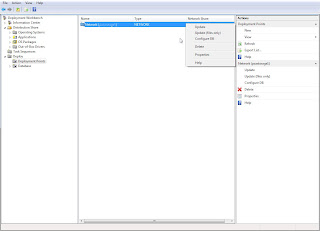
As you can see in the left pane you have to have the Deploy tree opened and Deployment Points selected. That will bring up your deployment points in your main pane. Right-click on the deployment point that you want to publish your changes to and the little right-click menu pops out that gives you the option to update or update (files only). The "update (files only)"option uploads all the changes you have done to your deployment point so long as they do not have to be incorporated into your WinPE image. If you need to update your CustomSettings.ini or Bootstrap.ini files or you need to include updated network drivers into your WinPE CD then you will need to click the "update" option.
If you are seeing weird things that you are sure you changed then go here and update and reburn your WinPE CD and try again.

As you can see in the left pane you have to have the Deploy tree opened and Deployment Points selected. That will bring up your deployment points in your main pane. Right-click on the deployment point that you want to publish your changes to and the little right-click menu pops out that gives you the option to update or update (files only). The "update (files only)"option uploads all the changes you have done to your deployment point so long as they do not have to be incorporated into your WinPE image. If you need to update your CustomSettings.ini or Bootstrap.ini files or you need to include updated network drivers into your WinPE CD then you will need to click the "update" option.
If you are seeing weird things that you are sure you changed then go here and update and reburn your WinPE CD and try again.
Task Sequence problems after updating MS Deployment
I just updated my MS Deployment tool to the latest version (4.0.383.0, I think). This is the new deployment tool that is now just out of beta. Thus far the update has went pretty smoothly. I have only had one problem. I backed up my work local and network deployment directories. I uninstalled the last MDT beta, and installed the new version. I pointed everything back to where it was supposed to be. When I got the the wizard for adding my local directory I noticed there was an upgrade option. I decided to try that so I wouldn't have to copy over the Vista source and remake my application command lines. Then I updated files and reburned my boot CD.
After booting to my WinPE CD for the first time I was getting a Task Sequencer not found error. This error was cropping up before it would ask for my username and password to connect to the share for the very first time. Because of this I knew it had something to do with the files that were on the CD. The first place I started looking was at my CustomSettings.ini and Bootstrap.ini files. Those files reside in the Control folder. I looked at my network share first and found a folder named {########...}. In that folder was a CustomSettings.ini and Bootstrap.ini file, with the modifications that I needed to have in them. In the root of the control folder there were also CustomSettings.ini and Bootstrap.ini files. These did not have the correct settings that I needed in them.
At this point I looked in my local deployment folder \Distribution\Control and in there were three sub-folders. Two that had the same naming convention as the one on the network share {########...} and another named 100 (which just so happens to be the number I gave my Task Sequence ID for my Vista build). At this point I replaced the 'upgraded' CustomSettings.ini and Bootstrap.ini files with the ones that had the information I needed. (How to explain this the least confusing way possible?) The two folders that have the same name in your network and local folders are what are going to have your old (and presumably working) ini files. The folder that does not get created on the network share is the folder that the ini files are being copied from to the root of the Control folder on your network resource.
Once you get those files copied over on your local machine then you need to update files and reburn your CD. That should then get you going again so you can go back to working on other MDT issues. :)
After booting to my WinPE CD for the first time I was getting a Task Sequencer not found error. This error was cropping up before it would ask for my username and password to connect to the share for the very first time. Because of this I knew it had something to do with the files that were on the CD. The first place I started looking was at my CustomSettings.ini and Bootstrap.ini files. Those files reside in the Control folder. I looked at my network share first and found a folder named {########...}. In that folder was a CustomSettings.ini and Bootstrap.ini file, with the modifications that I needed to have in them. In the root of the control folder there were also CustomSettings.ini and Bootstrap.ini files. These did not have the correct settings that I needed in them.
At this point I looked in my local deployment folder \Distribution\Control and in there were three sub-folders. Two that had the same naming convention as the one on the network share {########...} and another named 100 (which just so happens to be the number I gave my Task Sequence ID for my Vista build). At this point I replaced the 'upgraded' CustomSettings.ini and Bootstrap.ini files with the ones that had the information I needed. (How to explain this the least confusing way possible?) The two folders that have the same name in your network and local folders are what are going to have your old (and presumably working) ini files. The folder that does not get created on the network share is the folder that the ini files are being copied from to the root of the Control folder on your network resource.
Once you get those files copied over on your local machine then you need to update files and reburn your CD. That should then get you going again so you can go back to working on other MDT issues. :)
Friday, November 9, 2007
My CustomSettings.ini and Bootstrap.ini innards
Here is what I currently have in my CustomSettings.ini and Bootstrap.ini files: I've changed a few things, but you should expect that...
CS:
[Settings]
Priority=Default
Properties=StagingOU,DomainDC
[Default]
OSInstall=YES
UserDataLocation=NONE
SkipAppsOnUpgrade=YES
SkipCapture=YES
SkipAdminPassword=YES
SkipProductKey=YES
SkipBDDWelcome=YES
AdminPassword=THEPASSWORD
SkipDeploymentType=YES
DeploymentType=NEWCOMPUTER
SkipDomainMembership=NO
JoinDomain=DOMAIN
DomainAdminDomain=DOMAIN
SkipUserData=YES
SkipBuild=NO
BuildiD=Test1
SkipComputerName=NO
ComputerName=TEST-COMPUTER
SkipPackageDisplay=NO
SkipLocaleSelection=YES
UILanguage=en-US
UserLocale=en-US
KeyboardLocale=0409:00000409
SkipTimeZone=YES
TimeZoneName=Mountain Standard Time
SkipApplications=NO
SkipBitLocker=YES
SkipSummary=NO
CaptureGroups=NO
SLShare=\\COMPUTER\logs$
Home_page=http://my.SCHOOL.edu
StagingOU=OU=VistaTest,DC=DOMAIN,DC=ad,DC=SCHOOL,DC=edu
DomainDC=DOMAIN.ad.SCHOOL.edu
[Settings]
Properties=StagingOU,DomainDC
I had to add this in there because of the custom scripts I found to swap OUs. StagingOU and DomainDC get initalized further down in the [Default] section.
[Default]
OSInstall=YES
UserDataLocation=NONE
SkipAppsOnUpgrade=YES
SkipCapture=YES
The 3 above are used for upgrades -- which I don't know anything about.
SkipAdminPassword=YES
Ask the 'user' to input an admin password when they are building the machine.
SkipProductKey=YES
Has the machine talk to the KMS server.
SkipBDDWelcome=YES
Don't make me click next to get to a useful prompt.
AdminPassword=THEPASSWORD
Put what you want here for the admin password.
SkipDeploymentType=YES
DeploymentType=NEWCOMPUTERSkipUserData=YES
This formats the HDD and does not save user data.
SkipDomainMembership=NO
JoinDomain=DOMAIN
DomainAdminDomain=DOMAIN
You can prepopulate this to save some typing when telling the setup what domain to join.
SkipBuild=NO
BuildiD=Test1
In MDT you can have several different builds -- this lets you choose which one to prompt for or automatically start building with.
SkipComputerName=NO
ComputerName=TEST-COMPUTER
Prompt for the computer name.
SkipPackageDisplay=NOSkipApplications=NO
Show what packages get installed and allow the person running the build to check off what gets installed.
SkipLocaleSelection=YES
UILanguage=en-US
UserLocale=en-US
KeyboardLocale=0409:00000409
Lookup these values if you need them to be different.
SkipTimeZone=YES
TimeZoneName=Mountain Standard Time
Look it up if you need something different here.
SkipBitLocker=YES
We are not going to use this.
SkipSummary=NO
Shows the values you have either put into this CS.ini file or typed into the dialogs to check they are correct.
CaptureGroups=NO
Store the members of the current groups on the machine so they can be readded after the machine is built.
SLShare=\\COMPUTER\logs$
Where some logs will be saved at on a network machine if you want them to be. I had a very difficult time getting this to work, but it is very nice when you run into problems with your deployment (and you will).
Home_page=http://my.SCHOOL.edu
Sets the default IE homepage.
StagingOU=OU=VistaTest,DC=DOMAIN,DC=ad,DC=SCHOOL,DC=edu
DomainDC=DOMAIN.ad.SCHOOL.edu
These are added in so that my custom swap OU scripts will work. The DomainDC value has to be something that the WinPE 'install' can resolve. The StagingOU is where you want your machine to be housed on a temp basis so that you can get around any policies that may cause you heartburn with doing installs. For me the generic Computers OU would not work, I had to make a different one -- but more on that in another post.
Boot:
[Settings]
Priority=Default
[Default]
SkipBDDWelcome=YES
DeployRoot=\\MYSERVER\Deploy$
UserDomain=DOMAIN
UserID=admin
SkipBDDWelcome=YES
Gets rid of the 'hi welcome to the deployment click next to do anything useful' screen.
DeployRoot=\\MYSERVER\Deploy$
The server share where you have your deployment point at.
UserDomain=DOMAIN
The domain that the below UserID is a part of that let's you have access to the above DeployRoot folder.
UserID=admin
The user name you use to connect to the DeployRoot share.
CS:
[Settings]
Priority=Default
Properties=StagingOU,DomainDC
[Default]
OSInstall=YES
UserDataLocation=NONE
SkipAppsOnUpgrade=YES
SkipCapture=YES
SkipAdminPassword=YES
SkipProductKey=YES
SkipBDDWelcome=YES
AdminPassword=THEPASSWORD
SkipDeploymentType=YES
DeploymentType=NEWCOMPUTER
SkipDomainMembership=NO
JoinDomain=DOMAIN
DomainAdminDomain=DOMAIN
SkipUserData=YES
SkipBuild=NO
BuildiD=Test1
SkipComputerName=NO
ComputerName=TEST-COMPUTER
SkipPackageDisplay=NO
SkipLocaleSelection=YES
UILanguage=en-US
UserLocale=en-US
KeyboardLocale=0409:00000409
SkipTimeZone=YES
TimeZoneName=Mountain Standard Time
SkipApplications=NO
SkipBitLocker=YES
SkipSummary=NO
CaptureGroups=NO
SLShare=\\COMPUTER\logs$
Home_page=http://my.SCHOOL.edu
StagingOU=OU=VistaTest,DC=DOMAIN,DC=ad,DC=SCHOOL,DC=edu
DomainDC=DOMAIN.ad.SCHOOL.edu
CustomSettings.ini settings
Note: The YES' and NO's have to be UPERCASE.[Settings]
Properties=StagingOU,DomainDC
I had to add this in there because of the custom scripts I found to swap OUs. StagingOU and DomainDC get initalized further down in the [Default] section.
[Default]
OSInstall=YES
UserDataLocation=NONE
SkipAppsOnUpgrade=YES
SkipCapture=YES
The 3 above are used for upgrades -- which I don't know anything about.
SkipAdminPassword=YES
Ask the 'user' to input an admin password when they are building the machine.
SkipProductKey=YES
Has the machine talk to the KMS server.
SkipBDDWelcome=YES
Don't make me click next to get to a useful prompt.
AdminPassword=THEPASSWORD
Put what you want here for the admin password.
SkipDeploymentType=YES
DeploymentType=NEWCOMPUTERSkipUserData=YES
This formats the HDD and does not save user data.
SkipDomainMembership=NO
JoinDomain=DOMAIN
DomainAdminDomain=DOMAIN
You can prepopulate this to save some typing when telling the setup what domain to join.
SkipBuild=NO
BuildiD=Test1
In MDT you can have several different builds -- this lets you choose which one to prompt for or automatically start building with.
SkipComputerName=NO
ComputerName=TEST-COMPUTER
Prompt for the computer name.
SkipPackageDisplay=NOSkipApplications=NO
Show what packages get installed and allow the person running the build to check off what gets installed.
SkipLocaleSelection=YES
UILanguage=en-US
UserLocale=en-US
KeyboardLocale=0409:00000409
Lookup these values if you need them to be different.
SkipTimeZone=YES
TimeZoneName=Mountain Standard Time
Look it up if you need something different here.
SkipBitLocker=YES
We are not going to use this.
SkipSummary=NO
Shows the values you have either put into this CS.ini file or typed into the dialogs to check they are correct.
CaptureGroups=NO
Store the members of the current groups on the machine so they can be readded after the machine is built.
SLShare=\\COMPUTER\logs$
Where some logs will be saved at on a network machine if you want them to be. I had a very difficult time getting this to work, but it is very nice when you run into problems with your deployment (and you will).
Home_page=http://my.SCHOOL.edu
Sets the default IE homepage.
StagingOU=OU=VistaTest,DC=DOMAIN,DC=ad,DC=SCHOOL,DC=edu
DomainDC=DOMAIN.ad.SCHOOL.edu
These are added in so that my custom swap OU scripts will work. The DomainDC value has to be something that the WinPE 'install' can resolve. The StagingOU is where you want your machine to be housed on a temp basis so that you can get around any policies that may cause you heartburn with doing installs. For me the generic Computers OU would not work, I had to make a different one -- but more on that in another post.
Boot:
[Settings]
Priority=Default
[Default]
SkipBDDWelcome=YES
DeployRoot=\\MYSERVER\Deploy$
UserDomain=DOMAIN
UserID=admin
Bootstrap.ini settings
SkipBDDWelcome=YES
Gets rid of the 'hi welcome to the deployment click next to do anything useful' screen.
DeployRoot=\\MYSERVER\Deploy$
The server share where you have your deployment point at.
UserDomain=DOMAIN
The domain that the below UserID is a part of that let's you have access to the above DeployRoot folder.
UserID=admin
The user name you use to connect to the DeployRoot share.
CustomSettings.ini
Sysprep.inf is dead! Long live sysprep.inf.
Here's the good stuff on the CustomSettings.ini and Bootstrap.ini if you don't care to read my story on them... CustomSettings.ini lives in the Control folder in your deployment point. If you can't find it in the root then it is in a sub folder. If there are more than one you will need to find out which one actually controls your booting up. I guess it is also worth pointing out that these files get copied to the boot CD if you make one so you have to "recompile" your boot disc everytime you make a change to either of those files. Skip to the bottom for more info without my life's story as it relates to CustomSettings.ini and Bootstrap.ini.
I had *ahem* a very hard time trying to figure that was was driving this Win PE thing that I was being told to use by BDD. I knew that somewhere somehow something was telling PE to do something, but at the time I was trying to figure that out it seemed like finding out what was on the state secrets list. After digging for a long time I finally figured out that the files that I really needed to mess with were Customsettings.ini and Bootstrap.ini.
When I first started my life as a tech working on our lab machines we were using DOS boot disks (and this wasn't THAT long ago -- I'm not THAT old :p ) to start our builds for our XP machines. Eventually we ran into BartPE and life was glorious! The group that I am now a part of syspreped their builds that they made and I started to become very familiar with what that little file did. I worked with that file and got things to smooth out a fair amount. So when I read that sysprep.inf was dead I just couldn't believe that there was not something waiting in the wings to drive the new install system MS had built.
I knew that there were a lot of options in sysprep.inf that would save me a lot of typing and waiting around on dialog boxes. When I first started looking and trying to figure out what was driving this new menu system of course I knew that it was all XML. I tried to wade my way through them, but the only thing that I could really come up with was "yeah the things display things, but somewhere something has to initialize that variable." I am not a programmer and so looking at the scripts folder in my deployment point I was very daunted by the task of trying to follow all those scripts to figure out what was going on. Litterally after looking for 2 weeks, buying 2 books, doing tons of googling, and complaining to anyone that would listen I stumbled across CustomSettings.ini in forum posting I believe. White papers be damned I found what I could actually edit to get that XML that you talked about so much to do things for me!
Eureka!
The base CustomSettings.ini and Bootstrap.ini are very sparse files.
CustomSettings.ini:
[Settings]
Priority=Default
Properties=MyCustomProperty
[Default]
OSInstall=Y
Bootstrap.ini:
[Settings]
Priority=Default
[Default]
DeployRoot=
In the first BDD that I installed you could get to these files, but there was no indication that they would really help you in any way. All the white papers talked about was the other thing that I can't even seem to find in Deployment now. I wasted a lot of time on that thing trying to get it to customize my setup and not understanding what CustomSettings.ini did. Well now that you've listened to my life's story here's a good listing of the things that you can put into CustomSettings.ini to get the things done that you need to get done:
http://technet.microsoft.com/en-us/library/bb490304.aspx
Here's the good stuff on the CustomSettings.ini and Bootstrap.ini if you don't care to read my story on them... CustomSettings.ini lives in the Control folder in your deployment point. If you can't find it in the root then it is in a sub folder. If there are more than one you will need to find out which one actually controls your booting up. I guess it is also worth pointing out that these files get copied to the boot CD if you make one so you have to "recompile" your boot disc everytime you make a change to either of those files. Skip to the bottom for more info without my life's story as it relates to CustomSettings.ini and Bootstrap.ini.
I had *ahem* a very hard time trying to figure that was was driving this Win PE thing that I was being told to use by BDD. I knew that somewhere somehow something was telling PE to do something, but at the time I was trying to figure that out it seemed like finding out what was on the state secrets list. After digging for a long time I finally figured out that the files that I really needed to mess with were Customsettings.ini and Bootstrap.ini.
When I first started my life as a tech working on our lab machines we were using DOS boot disks (and this wasn't THAT long ago -- I'm not THAT old :p ) to start our builds for our XP machines. Eventually we ran into BartPE and life was glorious! The group that I am now a part of syspreped their builds that they made and I started to become very familiar with what that little file did. I worked with that file and got things to smooth out a fair amount. So when I read that sysprep.inf was dead I just couldn't believe that there was not something waiting in the wings to drive the new install system MS had built.
I knew that there were a lot of options in sysprep.inf that would save me a lot of typing and waiting around on dialog boxes. When I first started looking and trying to figure out what was driving this new menu system of course I knew that it was all XML. I tried to wade my way through them, but the only thing that I could really come up with was "yeah the things display things, but somewhere something has to initialize that variable." I am not a programmer and so looking at the scripts folder in my deployment point I was very daunted by the task of trying to follow all those scripts to figure out what was going on. Litterally after looking for 2 weeks, buying 2 books, doing tons of googling, and complaining to anyone that would listen I stumbled across CustomSettings.ini in forum posting I believe. White papers be damned I found what I could actually edit to get that XML that you talked about so much to do things for me!
Eureka!
The base CustomSettings.ini and Bootstrap.ini are very sparse files.
CustomSettings.ini:
[Settings]
Priority=Default
Properties=MyCustomProperty
[Default]
OSInstall=Y
Bootstrap.ini:
[Settings]
Priority=Default
[Default]
DeployRoot=
In the first BDD that I installed you could get to these files, but there was no indication that they would really help you in any way. All the white papers talked about was the other thing that I can't even seem to find in Deployment now. I wasted a lot of time on that thing trying to get it to customize my setup and not understanding what CustomSettings.ini did. Well now that you've listened to my life's story here's a good listing of the things that you can put into CustomSettings.ini to get the things done that you need to get done:
http://technet.microsoft.com/en-us/library/bb490304.aspx
Other Deployment blogs.
I'm sure that most people already know about these sites, as I can't believe that my blog would come up first on google, but just in case.
http://blogs.technet.com/richardsmith/default.aspx
http://blogs.technet.com/benhunter/default.aspx
And these are more specialized posts that might be very helpful too.
http://windowsconnected.com/forums/p/1871/7315.aspx#7315
http://blogs.technet.com/richardsmith/archive/2007/07/17/useful-registry-changes-during-build-creation.aspx
I will talk a fair amount more about this particular post later, as it sapped away about a week of my time...
http://blogs.technet.com/benhunter/archive/2007/09/16/bdd-2007-how-to-move-a-computer-object-in-windows-pe.aspx
http://blogs.technet.com/richardsmith/default.aspx
http://blogs.technet.com/benhunter/default.aspx
And these are more specialized posts that might be very helpful too.
http://windowsconnected.com/forums/p/1871/7315.aspx#7315
http://blogs.technet.com/richardsmith/archive/2007/07/17/useful-registry-changes-during-build-creation.aspx
I will talk a fair amount more about this particular post later, as it sapped away about a week of my time...
http://blogs.technet.com/benhunter/archive/2007/09/16/bdd-2007-how-to-move-a-computer-object-in-windows-pe.aspx
New Applications
In my limited experience with MS Deployment I have not seen a reason why there are two types of applications that you can add.

The first option of adding an application with source files has done nothing but cause me problems. First off every time you 'update files' it copies the application from your local deployment folder to the server deployment point. This seems like a pretty big waste of time/bandwidth to me. Also, and a lot more annoyingly, is that since it is touching your files on the server, well that means that it is touching your files on the server. If you make a small change to something, or think that you're making a small change to something you might just be erasing your application install point on the server. This has a lot of implications that I just was not happy with. I lost several small packages that I made and it took me a little while to figure out what was happening.
The second option of adding an application that is elsewhere on the network is just what the Dr. ordered for me. I don't know why the first option is there, but in the future I will not be using that. Maybe for someone there is a valid reason to use that option, but I would rather physically touch the files on the server myself rather than have the tool update stuff for me. When using this option I suggest not even using the applications folder that is part of the network deployment point. I have my own network share for applications and I copy the files over myself and I just point the new applications wizard to it.

The first option of adding an application with source files has done nothing but cause me problems. First off every time you 'update files' it copies the application from your local deployment folder to the server deployment point. This seems like a pretty big waste of time/bandwidth to me. Also, and a lot more annoyingly, is that since it is touching your files on the server, well that means that it is touching your files on the server. If you make a small change to something, or think that you're making a small change to something you might just be erasing your application install point on the server. This has a lot of implications that I just was not happy with. I lost several small packages that I made and it took me a little while to figure out what was happening.
The second option of adding an application that is elsewhere on the network is just what the Dr. ordered for me. I don't know why the first option is there, but in the future I will not be using that. Maybe for someone there is a valid reason to use that option, but I would rather physically touch the files on the server myself rather than have the tool update stuff for me. When using this option I suggest not even using the applications folder that is part of the network deployment point. I have my own network share for applications and I copy the files over myself and I just point the new applications wizard to it.
Subscribe to:
Posts (Atom)